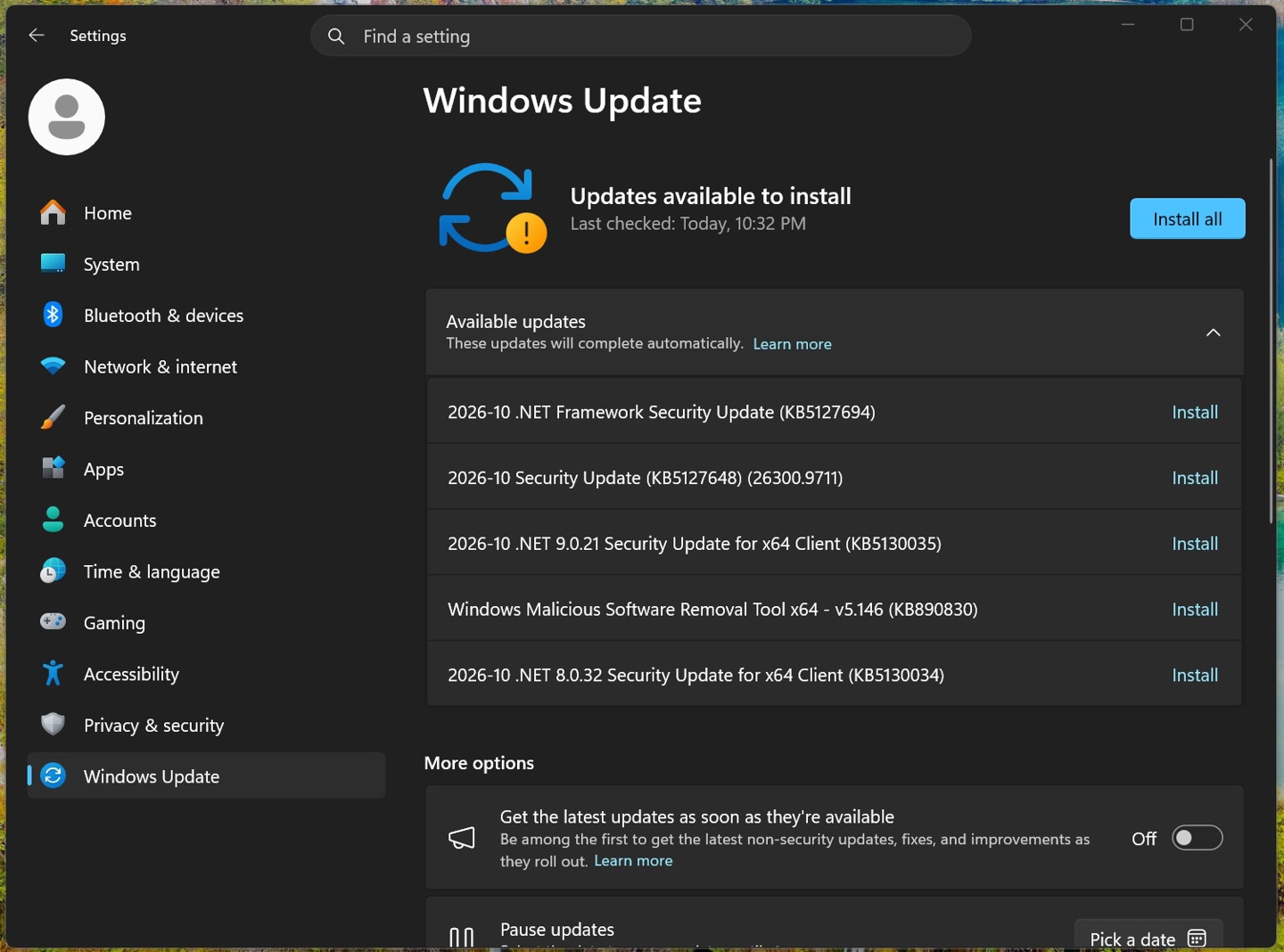
Microsoft has rolled out the first cumulative update for Windows 11 versions 24H2, 25H2, and 26H2, identified as KB5127648. This update marks the debut cumulative release for Windows 11 26H2, bringing system build numbers to 26100.9711, 26200.9711, and 26300.9711 respectively. A significant note for users is that Windows 11 24H2 Home and Pro editions have now reached their end of support. Devices running these versions will no longer receive security patches or bug fixes, nor will they be entitled to technical support from Microsoft. The company strongly advises users to upgrade to a newer operating system version before this cutoff. However, the support lifecycle for Windows 11 24H2 Enterprise and Education editions extends until October 12, 2027.
Key Features and Improvements in KB5127648
File Explorer Enhancements
The File Explorer receives several notable upgrades. The preview pane for internet-downloaded files now features a “Keep previewing” button for HTML files, allowing users to proceed after acknowledging potential risks. Non-HTML files like PDFs will now open directly in the preview pane. Additionally, the File Explorer’s home page now remembers the collapsed or expanded state of its sections, maintaining your preferred layout upon reopening. The reliability of cloud file thumbnail previews in the details pane has been improved, and the pane’s layout has been reorganized for easier access to file properties. A bug causing the address bar content to be unexpectedly cleared when entering edit mode has also been resolved.
Emoji 17.0 Support
Windows 11 now supports Emoji 17.0, introducing new expressions such as the ‘Distorted Face,’ ‘Dust Cloud,’ and ‘Fluffy Creature.’ These can be accessed via the emoji panel by pressing the Win + . shortcut. Minor adjustments have also been made to the design of existing emojis to ensure greater consistency across different platforms.
Widgets and Personalization
A new “Tips” widget has been added, offering quick guidance on Windows features. This widget can be added to your widget panel or to the lock screen via Settings > Personalization > Lock screen. Stability improvements have been made to the Settings > Personalization > Background page. Users can now set DIB format images as desktop wallpapers, and the transition for desktop slideshow wallpapers in new accounts has been made more reliable. The clarity of wallpaper thumbnails in the personalization settings has been optimized, and issues with incorrect desktop wallpaper previews on portrait displays have been fixed. Faster switching between multiple desktop wallpapers is now more stable, and slideshow wallpapers can now be shared across virtual desktops, preventing the system from reverting to a single image.
Bluetooth and Audio Improvements
When adjusting call volume using built-in buttons on classic Bluetooth audio peripherals, a volume pop-up will now appear, providing visual feedback. The accuracy of connection status reporting has been improved after a peripheral disconnects. Stability has been enhanced when managing Bluetooth and audio devices in the Bluetooth & devices page. A display error where the Bluetooth toggle in settings remained on even when the hardware was off has been fixed. Overall Bluetooth audio stability and device compatibility have been significantly boosted, along with improved microphone adaptation for some classic Bluetooth audio peripherals. A critical bug that could cause a blue screen (error code 0x139) during Bluetooth audio streaming has been resolved. The reliability and performance of Low Energy Audio (LE Audio) accessories, as well as the “Share audio” feature, have also been enhanced.
Accessibility Features
A new setting allows windows to automatically maximize upon opening. This feature is beneficial for users of Narrator, Magnifier, tablet mode, or those who prefer a unified full-screen workspace. To enable it, navigate to Settings > Accessibility > Visual effects and toggle on “Maximize apps automatically when they open.”
Magnifier Updates
The Magnifier toolbar has been updated with a cleaner, more modern UI that aligns with the Windows 11 design language. Internal padding and line spacing have been optimized for a tidier layout, while all existing Magnifier functionalities remain unchanged.
Settings App Improvements
Stability has been improved when accessing the “Printers & scanners” page under Bluetooth & devices. The “Installed apps” page under Apps now displays version numbers for packaged applications at the top of the list, unifying the display with other software. The time selection control in Settings now synchronizes with the preferred time format when switching between 12/24 hour modes, impacting features like active hours and night mode scheduling. A bug where the “Allow multiple apps to use the camera” option failed to save has been fixed.
Touchpad Gestures
Single-finger scrolling is now available via vertical swipes on the left or right edges of the touchpad. Auto-scrolling can be continuously activated without lifting the finger by approaching the touchpad edge or increasing pressure (requires hardware support). Adjustment options for scroll speed, zoom, and accelerated scrolling were added in the July 2026 update.
Copilot Key Customization
A new customization option allows users to remap the Copilot key. It can now be reassigned to function as the Right Ctrl key or the Context Menu key, offering flexibility for users who prefer traditional shortcuts or assistive operations.
Photo Backup and Fonts
New photo backup configurations are available in Settings > Home and Accounts, enabling automatic cloud backup of photos and videos from mobile devices to OneDrive. The Ebrima font now supports the Garay and Beria Erfe writing systems (Unicode 16.0 and 17.0 respectively), expanding Windows’ compatibility with African scripts. The Adlam script’s glyphs in the Ebrima font have also been optimized for better visual consistency with the latest Unicode standards.
Windows Recovery Environment (WinRE) and Kiosk Mode
WinRE now includes network capabilities, allowing it to automatically reuse saved Wi-Fi profiles, including those with certificate authentication. This eliminates the need for manual password entry for Wi-Fi during recovery. A remote recovery management plugin has also been added for MDM platforms to extend WinRE management capabilities. For Kiosk mode, the Win+Tab shortcut is now disabled in the Restricted-as-shell mode, and Win+A and Win+C are disabled in the Single-app kiosk mode.
Windows Backup and Power Settings
The PC-to-PC full system migration feature for Windows Backup has been officially discontinued. Users are advised to use the Windows Backup app for file and configuration migration instead. A fix has been implemented for power and battery issues where some plugged-in laptops incorrectly switched from AC power to battery, causing display and performance anomalies.
General Fixes
This update addresses numerous issues across various components. Camera failures in the Camera app and other software have been resolved. File History backup and restore issues to external drives and network locations are fixed. System Monitor (Sysmon) has seen fixes for executable header validation defects, file system filter driver faults leading to GSOD, and false positives in process tampering detection. File Explorer stability in multi-user environments like Azure Virtual Desktop and FSLogix has been improved. AC-3 audio playback issues and VPN connection failures after installing KB5124008 have been resolved. Problems with Storage Spaces tiered virtual disks and printing failures with RAW and generic text drivers have been fixed. A new time zone for Manitoba (UTC-05:00) has been added. REFS file system on external drives now has enhanced auditing capabilities. Gaming performance issues with mouse movement have been addressed, and Windows Hello fingerprint authentication failures after cold boots have been resolved.