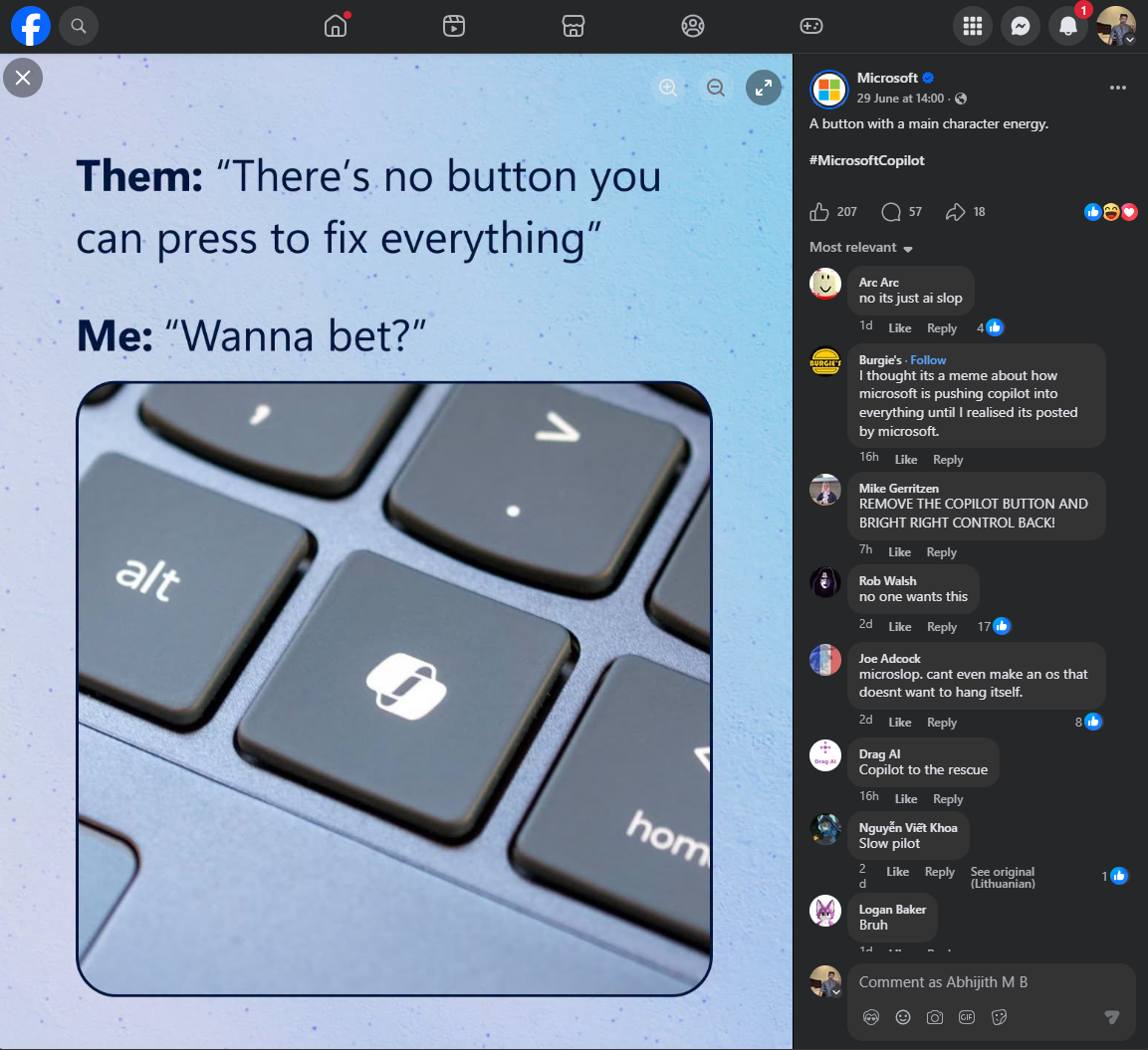
Microsoft is expanding the customization options for the dedicated Copilot key introduced on AI+ PCs. Initially designed to quickly launch the AI assistant, users will soon have more flexibility to remap this key to perform other functions.
Copilot Key Flexibility Expands
Following its introduction alongside various OEMs in 2024 for Windows 11 AI+ PCs, the dedicated Copilot key offered a straightforward way to activate the AI chatbot. However, Microsoft acknowledged that the key might not suit everyone’s workflow, potentially interfering with existing shortcuts or accessibility features.
Recognizing this, Microsoft announced plans in a software update document dated April 2026 to introduce key customization. This update aims to allow users to repurpose the less frequently used Copilot key, giving them the option to revert it to a standard right Ctrl key or a context menu key.
New Mapping Options Available
The journey towards greater customization began earlier this year. After introducing a “no-operation” option in a preview build in July, Microsoft has now rolled out support for remapping the physical Copilot key to either a “right-click menu” or a “right Ctrl” function. These options are included in the Windows 11 24H2 Build 26100.9539 and 25H2 Build 26200.9539 updates, released on September 10th.
The settings for this customization can be found under Settings > Bluetooth & devices > Keyboard within Windows 11.
Potential Limitations
While the new mapping options offer increased utility, Microsoft has noted some potential limitations, particularly when remapping the key to function as a “right Ctrl” key. Users might encounter restrictions when trying to use specific key combinations involving the right Ctrl key, such as Right Ctrl + Windows key or Right Ctrl + Shift key. In such cases, Microsoft advises using the left Ctrl key instead to ensure these combinations function as intended.
Furthermore, if a device already comes with manufacturer-provided key mapping tools, Microsoft recommends using either the manufacturer’s tool or the Windows settings exclusively, but not both simultaneously, to avoid conflicts.